To take a screenshot with Windows 11, the Snipping Tool is used. To use it:
Open the Snipping Tool app (or use the "Windows Key + Shift + S" shortcut). Once the app is open, your screen will darken and several tabs will appear on the top of your screen. If you are using multiple monitors, you can move the cursor to the monitor you wish to take a screenshot on.
Choose between the four different snipping areas, described below.
Number | Mode | Function |
|---|---|---|
1 | Rectangular | Size a rectangle for your screenshot |
2 | Window | Choose a specific window to capture in your screenshot |
3 | Free-Form | Draw a free hand with your cursor for your screenshot |
4 | Full-Screen | Grab an image of your entire screen |
Once the image is taken, you will see a pop up in the lower right of your screen. Click the pop up to crop, draw, save, copy and/or share the image.
Pull up the image/screen you would like to capture.
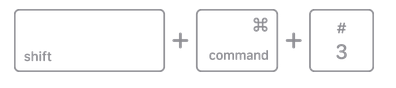
Press and hold Shift + Command + 3 to screenshot your entire screen. If you would rather use the rectangular tool, press Shift + Command + 4 instead.
Full Screen Capture
Rectangular/Partial Screen Capture
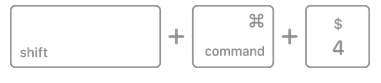
When using Shift + Command + 4, a crosshair will appear. Outline the image you would like to capture with the crosshair and release your mouse or trackpad button.
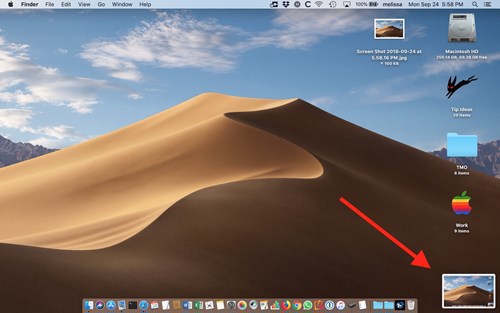
The screenshot will briefly appear in the bottom right corner of your screen. Click the image before it disappears to edit or crop it. The screenshot will automatically save to your desktop and will be named the time and date the screenshot was taken.