


To use your device on USI's wired or wireless networks, the device must first be registered. You need a myUSI username and password for registration. Network registration identifies you as a member of the USI community. We use your registration information to identify a device if problems or issues occur. Four months of device inactivity on the USI Network will result in the removal of your device's registration, and you will have to re-register that device.
Plug your computer into the nearest network wall jack using an ethernet network cable.
Choose your wireless network depending on your location and role at USI.
Wireless Network Options | Requirements | LOCATION / Notes |
|---|---|---|
USISecuredWiFi | Registered Devices (1), | On campus (not Residence areas) |
USIAcademic WiFi | Registered Devices (1) | On campus (not Residence areas) |
USIResKey | Registered Devices (1) | Residence Halls & Apartments |
USIGuest | user has no MyUSI logon (5) | Must have TXT enabled device. Registration Expires End of Day |
Media Devices | for IT use only | |
WiFiatUSI | do not use | nearing End of Life |
USIRes | do not use | nearing End of Life |
Search available wireless networks. Based on the table above, chose the wireless network appropriate for you.
Open an internet browser (such as Chrome or Safari).
The internet browser will immediately redirect from your homepage to the computer registration page. If this does not happen, try to visit a web site that you don’t commonly visit.
Enter your username and password, read the terms of agreement.
Click Register (bottom of the page).
Disconnect from the network and reconnect.
To learn how to register a device without a Web Browser (such as a TV or Xbox), see: 4. Register a Device Without a Web Browser (Such as a TV or Xbox)
If you have difficulty getting connected, contact the IT Service Desk.
In the residence halls and apartments, use the wireless network USIResKey. This is an encrypted SSID, offering more protection online. The password is available from your RA or the IT Sservice Desk at 812-465-1080.
When on campus, the wireless network SSID are USIacademicWIFI or USIsecuredWIFI. These are both encrypted. The password is available from the IT Service Desk at 812-465-1080.
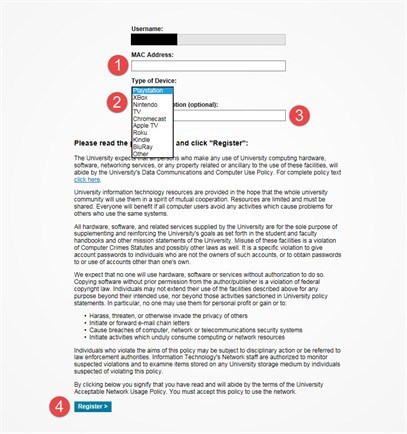
To register a device without a web browser (such as a TV or Xbox), you will have to manually register it.
Manually registering a device will require the MAC address of the device's wireless card. Instructions on how to get the MAC address varies between devices; it is typically located in the settings area. If you need help finding the MAC address or registering a device, please contact the IT Service Desk.
Go to https://wifi.usi.edu and login with your USI username and password.
Click "Add New Device" on the Home Screen.
Step 1: Type your device's MAC Address (A MAC Address looks like: xx:xx:xx:xx:xx:xx)
Step 2: Choose what device you are registering (If not listed choose "Other")
Step 3: Name your device (example: My PS4)
Step 4: Click Register to finish

Connect to the USIGUEST wireless network and enter their phone number on the registration screen. You will receive a validation code as a text. The validation code is necessary for the validation screen. The registration is valid until midnight.
Do not bring any wireless routers, network switches, network hubs, personal access devices, or grey market devices (ex: SuperBox). Installation of such devices is prohibited. All of these devices interfere with the campus wireless network and causes your fellow students problems. When a prohibited, unauthorized device is identified, the owner will either be asked to remove the device from the network, or IT reserves the right to revoke access to the unauthorized device.
Please do not use a wireless connection for printing. Plan to use USB for both security of your printer and courtesy of your fellow campus users. Wireless printers advertise their presence and can have print jobs sent to them by another wireless user. Wireless printers are considered "consumer-grade" in the wireless radio they use and are designed for home environments. They interfere with the enterprise wireless system installed on the campus, sometimes to the point of causing the signal to be unusable for some users.
We do not support Chromecasts, Alexa, Echo, or Google Home.