- Go to the Apple App Store or Play Store and install Google Authenticator on your device
- In a web browser on your computer – go to http://weblogin.usi.edu
- Sign In with your current MFA option
- Click your name in the top right
- Choose Settings
- On the right (under Security Methods) – find Google Authenticator and click Set Up.
- Click Setup, choose your mobile device type (iPhone / Android)
- Click Next
- Start the Google Authenticator app on your mobile device and click the + icon
- Choose Scan QR code - then scan it with your mobile device
- Click Next
- Enter the 6-digit code from the mobile device into the computer.
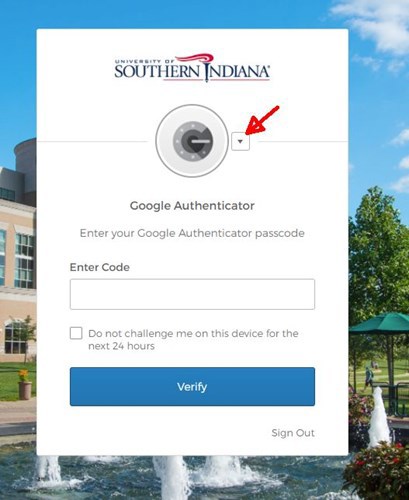
Google Authenticator is now set up. The next time you are prompted for MFA, you can switch to Google Authenticator as your preferred 2nd factor.