


 An accessible PDF ensures that people using screen readers, keyboard navigation, or other assistive technologies can fully read, understand, and interact with your document. Adobe Acrobat Pro provides a powerful suite of tools to create, check and remediate accessibility.
The easiest accessibility comes from well-structured source documents. Use heading styles in Microsoft Word or Powerpoint before exporting. Enable "Create Tagged PDF" in the PDF export settings to carry structure over automatically.
Use Tags in Adobe Acrobat Pro to form the structural backbone of an accessible PDF. Go to (Accessibility → Add Tags to Document) to auto-tag an untagged file. Tags define headings, paragraphs, lists, tables and figures so screen readers can interpret the content correctly. Structure your document with proper heading levels H1 for the main title, H2 for major sections, H3 for subsections. Use the Tags panel in Acrobat to verify or manually assign heading tags. Never skip levels (e.g., H1 directly to H3).
Open the Reading Order tool (Accessibility → Reading Order) to visually confirm and adjust the sequence in which content will be read aloud. This is especially important for multi-column layouts, sidebars, and callout boxes.
Bookmarks provide a navigable table of contents for screen reader users. In Acrobat, create bookmarks via View → Navigation Panels → Bookmarks. For documents converted from Word or InDesign with heading styles, bookmarks are often generated automatically during export.
Set a meaningful initial view (File → Properties → Initial View), to configure the document to open with the Bookmarks panel visible for long documents. Set the magnification to "Fit Page" or a user-friendly zoom level to avoid disorienting users upon opening.
There are several things to set in the File → Properties section.
Under Description (File → Properties → Description) Add a descriptive title to your document and fill in the Title field. In the Initial View tab, set "Show" to Document Title so screen readers announce the title instead of the filename when the document opens.
Under Advance (File → Properties → Advanced) set the primary document language. This tells screen readers which language rules and pronunciation to apply.
Completing the Author, Subject and Keywords properties is recommended.
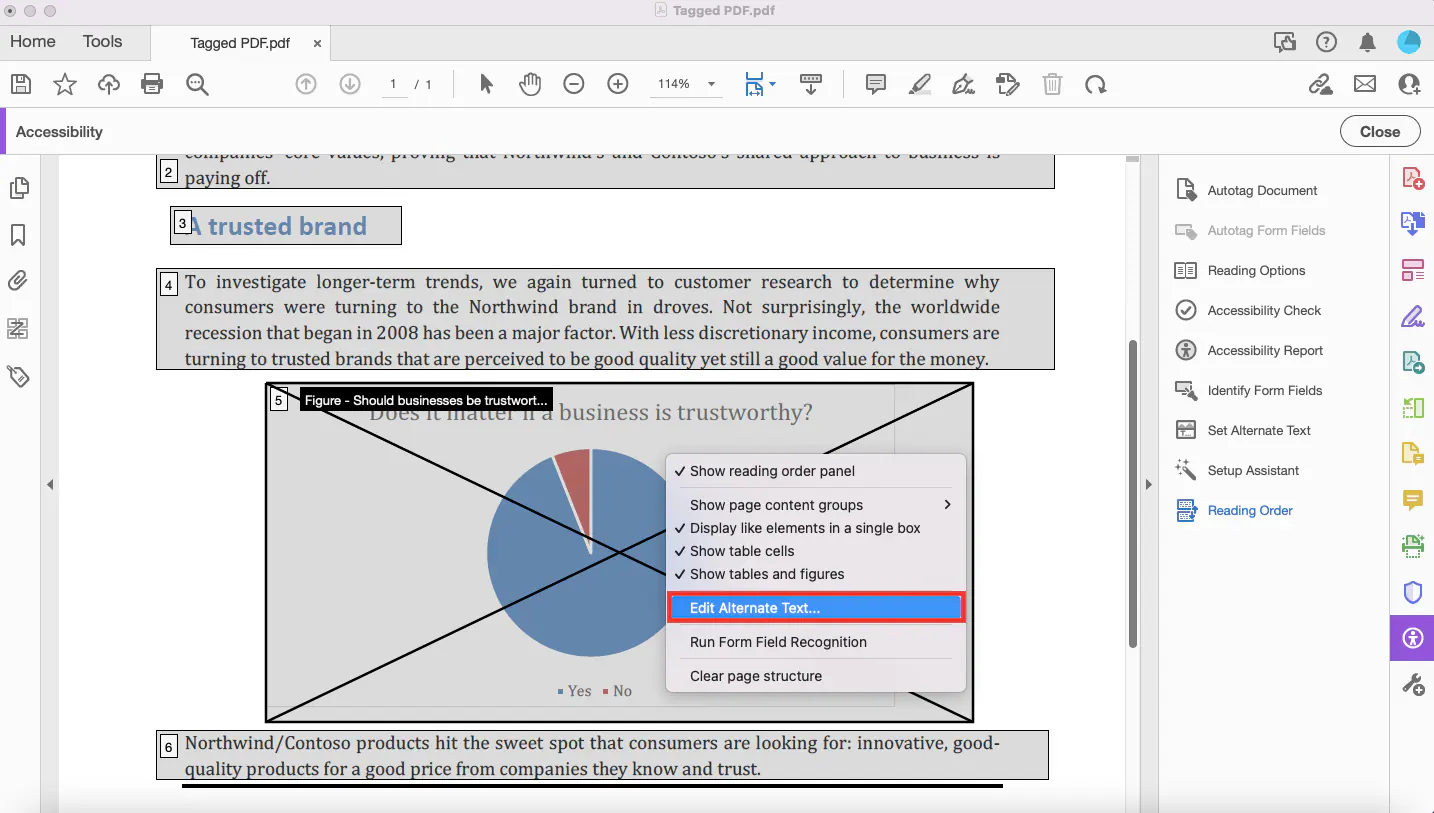 Screen readers cannot describe images or text in images without an alternate description. In Adobe Acrobat Pro, right-click any image and select Edit Alt Text.
Write concise, descriptive alt text that conveys the purpose and content of the image. Avoid vague text such as "image of a chart." Aim for 1-2 sentences that communicate what the image adds to the document.
If the image is purely decoration, tag it as "Artifacts" so screen readers skip it entirely. In the Tags panel, right-click the figure tag and choose Change Tag to Artifact, or use the Reading Order tool to mark it as Background.
For charts, graphs and infographics, supplement alt text with a visible caption or text description within the document body. Alt text alone may be insufficient for conveying complex data. Consider including the key data points as a nearby table or paragraph.
Define header rows and columns by using the Table Editor in Acrobat (Right-click table tag → Table Editor) to designate header cells with the TH tag. Mark whether they are row headers or column headers using the Scope attribute so screen readers announce them correctly for each data cell. Also in the Table Editor properties, use the summary attribute to give screen reader users a brief overview of the table's purpose and structure before they navigate through individual cells.
Avoid complex tables with merged cells and nested tables that are difficult for assistive technology to navigate. Simplify wherever possible. If a complex table is unavoidable, provide a plain-text summary of the data nearby.
Use colors with strong contrast between text and background, and avoid relying on color alone to convey information. With around 13 million Americans affected by color blindness, color distinctions can be meaningless or confusing for a significant portion of your audience. Avoid things like "Items in red are urgent". Pair color with text labels, patterns, or icons. In charts, add data labels or use patterns in addition to color fills. This helps colorblind users and anyone printing in grayscale.
Avoid vague links like "click here" or "read more." Instead, use text that describes the destination or action: "Download the 2026 Accessibility Report."
In Acrobat, edit link properties via Tools → Edit PDF → Link and update the display text and tooltip accordingly.
Many forms are presented in PDF format, it is important to prepare them for users with assistive technology.
In Acrobat's Prepare Form tool, right-click each field and open its properties. Under the General tab, enter a descriptive Tooltip. Never leave tooltips blank, this is what screen readers announce as the field label. Include format hints directly in field tooltips or adjacent text (e.g., "Enter date as MM/DD/YYYY"). For required fields, note this requirement in the label, not just through a color indicator. Use Acrobat's validation features to guide users on errors.
Set a logical Tab order (Page Properties → Tab Order ) to "Use Document Structure". This ensures keyboard-only users tab through form fields in a logical, top-to-bottom sequence rather than the order fields were created.
Avoid generic button labels like "Submit." Use descriptive text such as "Submit Application Form" or "Send Your Request." Set the button's Tooltip in its properties to match, giving screen reader users clear context about what action will be performed.
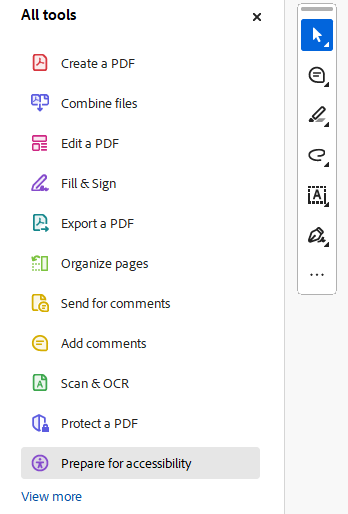 Acrobat Accessibility Checker
Use All tools → Prepare for accessibility → Check for accessibility (or Accessibility Checker in older versions) to run an automated scan. The report flags issues across categories: Document, Page Content, Forms, Tables, and Lists. Address each error before publishing.