This is an example of an FAQ section using the default "Tile" style using the "Blue" theme.
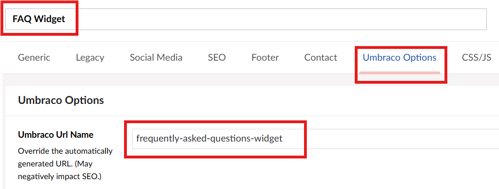
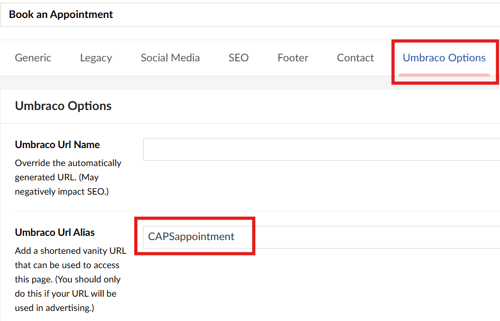
Navigate to the "Umbraco Options" tab on your page. Enter a URL slug in the "Umbraco URL Name" field. Make sure to use the - character in place of spaces between words. Then you can change your page title.
Example:
The title of this page is "Frequently Asked Questions Widget." The automatically generated URL for this page is https://www.usi.edu/web/training/frequently-asked-questions-widget. If I want to change the title of the page to "FAQ Widget" and keep the same URL, enter "frequently-asked-questions-widget" in the "Umbraco URL Name" field. Then, change the title of the page. If I don't do this, the URL will automatically change to https://www.usi.edu/web/training/faq-widget.
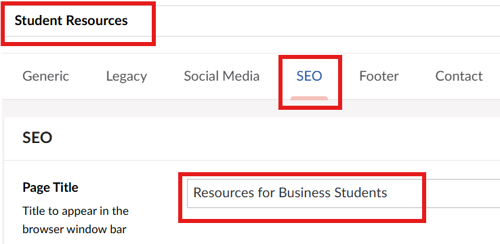
You can change the title of the page that appears in Google search results by navigating to the "SEO" tab of your page in Umbraco and filling in the "Page Title" field. "- University of Southern Indiana" will automatically be appended to whatever you enter in this field.
Example:
My webpage is called "Student Resources" and it lives within the Romain College of Business website. If I enter "Resources for Business Students" in the "Page Title" field, the page title that appears in Google will be "Resources for Business Students - University of Southern Indiana". This allows Google to understand that these resources are not for all students, but for business students specifically.
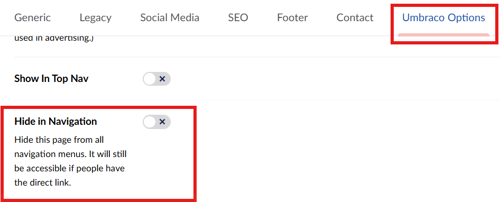
The "Hide in Navigation" toggle is located on the "Umbraco Options" tab. Turning this on will exclude that page from the header navigation. If you don't link to this page on any other webpage, this page will not be findable by search engines.
If you have content that you don't want to be found in the internal web search results or in Google, Bing, and other search engines, toggling "Hide in Navigation" on is appropriate.
Example:
I am running a paid advertising campaign at https://www.usi.edu/ad/eagles-rule. I only want this page to be accessible by individuals who click on a link in a paid advertisement on the USA Today website. I turn "Hide in Navigation" on to make sure no one without access to the direct link can navigate to it.
This is an example of an FAQ widget using the "Accordion" style, with a "Blue" theme, with "Reverse Theme" enabled.
The "Umbraco URL Alias" field provides the option to create a secondary URL, or alias, from which users can access a page. This is alternately referred to as a redirect or a vanity URL. This field can be used to create a shorter URL for people who may need to type it directly into the web browser.
Example:
I am creating a brochure for students to provide them more information about USI's Counseling and Psychological Services office. I want to include an easy way for students to access the "Book an Appointment" page. This page lives at https://www.usi.edu/counseling-and-psychological-services/book-an-appointment. I know this URL is too long for someone to type into a browser. If I enter "CAPSappointment" in the "Umbraco URL Alias" field, I will be able to access the appointment page from both the original URL and this alternate URL: https://www.usi.edu/CAPSappointment. This URL is much easier to type, so I can include it in my brochure.
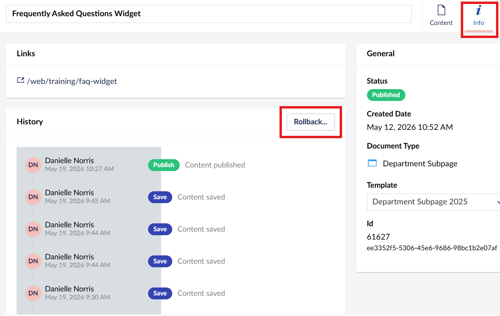
You can see previously saved and published activity on a webpage on the "Info" tab in Umbraco. You can roll back to previously published versions of a webpage for around 30 days after publishing. After that time, you will be able to see that changes were made, but you won't be able to see what those changes were or to roll back to that version.
This is because storing previous versions of webpages takes up storage space on our web server. In order to minimize storage costs, we only store previous versions for a limited period of time.
If you are editing within the allotted period of time and would like to roll back to a previous version of your page, navigate to the "Info" tab and click the "Rollback" button. Choose the version of the page you would like, then click "Rollback." Be sure to "Save and Publish" to make the changes public.
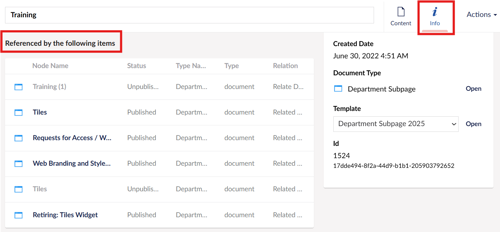
From time to time, you'll want to remove a page from your website. Before you hit "Unpublish," navigate to the "Info" section of your site and look for the section "Referenced by the following items." If there are published items referencing the page you want to publish, navigate to those published pages and remove the link before unpublishing the page.
Example:
Before unpublishing this page, I need to remove the links to it on these pages: "Tiles", "Requests for Access / Website," "Web Branding and Style Guide," and "Retiring: Tiles Widget." Once you have removed those links, you can unpublish this page.