


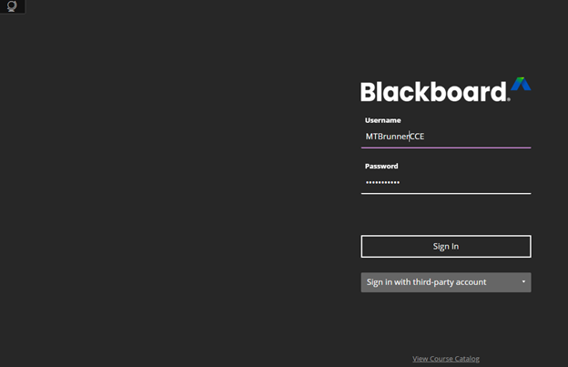
Type in username and password. Add CCE to the end of your username.
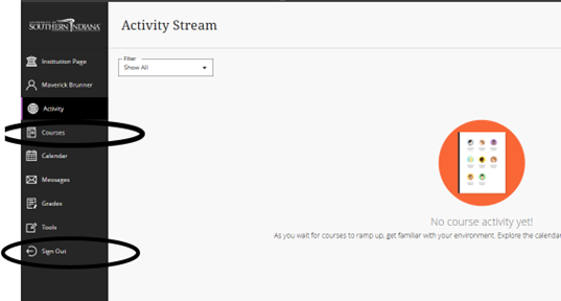
NOTE: IF YOU MUST LEAVE BEFORE FINISHING THE TRAINING, YOU MUST “SIGN OUT” BY USING THE SIGN OUT ON THE MENU. IF YOU DO NOT YOU WILL BE FORCED TO START OVER!!
Navigating Mead Johnson Nutrition's Contractor Orientation
Once you register for the training, you will see the following screen.


2. A menu will drop down. Click "Video 1 - Contractor Guidelines"

3. Read the "Contractor Guidelines", then watch the instructional video below. The video's contents will be what you are quizzed on.

4. Click anywhere on the video to begin. You can pause, play, and rewind, but you cannot Navigate Forward on the video player.

5. When ready, click "Knowledge Check I Video 1 -Contractor Guidelines"

6. Click "Start attempt 1" to begin the Knowledge Check questions.

7. Questions will appear 1-by-1. Click on the answer you think is correct.

8. Then click "Continue" to proceed to the next question.

9. Once you are done with all questions, click "Submit" at the bottom of the screen.

10. Confirm "Submit

11. Click "Close" out of the confirmation panel.

12. Your attempts' points-correct will be displayed here

13. Click "Start attempt 2" if you'd like to retake the quiz. You can retake the Knowledge Check as many times as you'd like to practice for the Final Test.

14. Click "x" to go back to the Home Screen.

15. Click "Start" on Module 2 when ready to proceed

16. Click “Submit” when you have completed the final. You will receive a confirmation that the test was submitted. THIS DOES NOT MEAN YOU PASSED. A score of 25 or higher is required to successfully pass the training.

If you do not pass (24 points or below) you will need to retake the test. YOU CANNOT RESTART THE TEST RIGHT AWAY. The system enforces a cool down period of 30 full minutes. You will need to start from the beginning by registering for the training again.